D-Tools/B2B SaaS/0 to 1 feature/Web

Every AV project runs on documents. D-Tools had nowhere to keep them.

D-Tools tracked the quote, the equipment, the labor and the schedule, but not the drawings, photos and handover docs that explain them. I designed Files from a blank page: a shared structure that follows the deal, a filing rule that keeps it clean, and a status system teams can read at a glance.

The problem

Project files lived outside the system of record, so finding one depended on who you asked.

The bet

Structure first, storage second. Every file gets a home before it's uploaded.

What I owned

End to end: problem framing, IA, interaction, visual design and specs.

What it became

Lifecycle folders, file-before-upload, visible permissions and status tags.

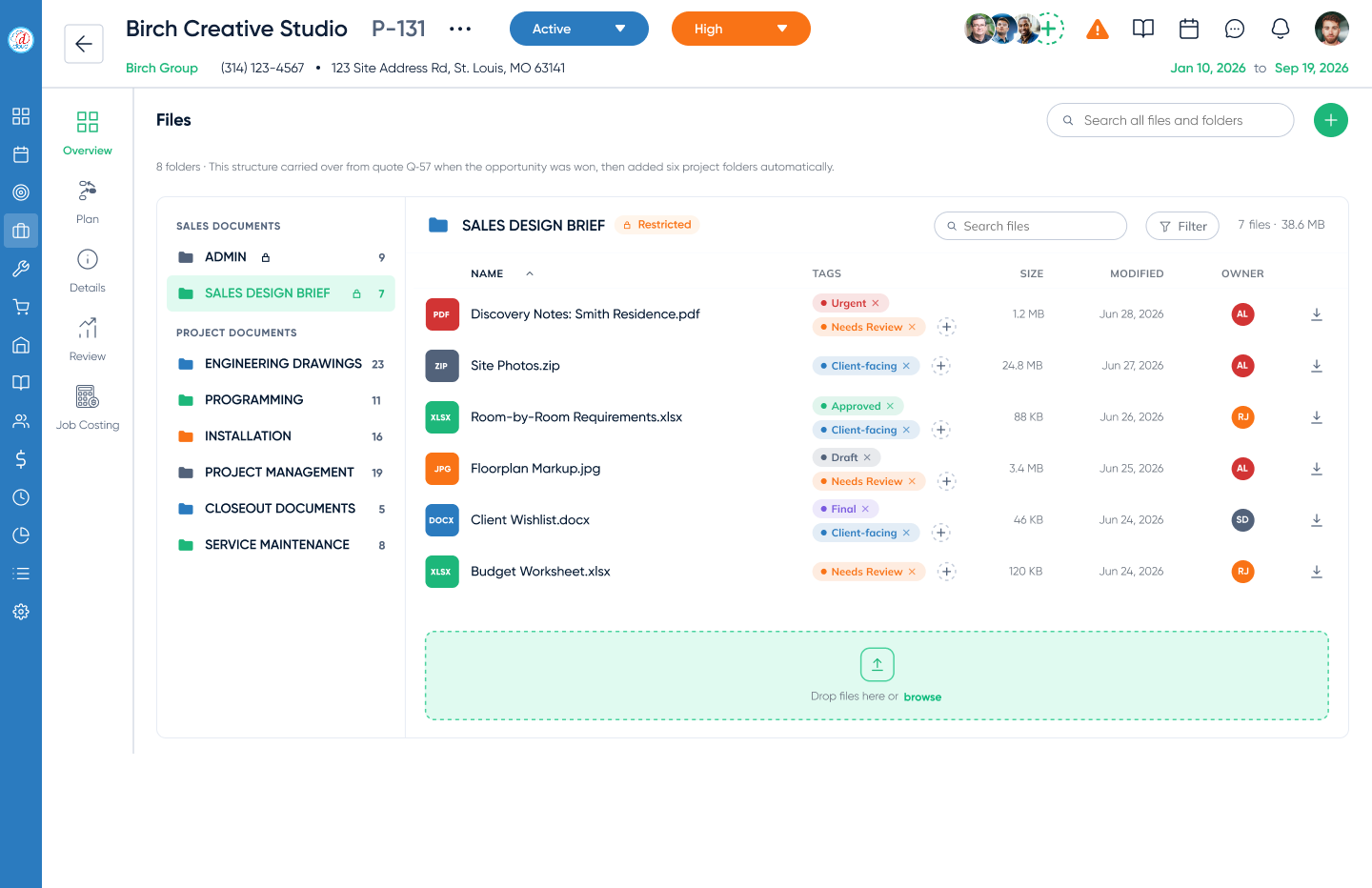
D-Tools project Files tab. A folder tree split into Sales documents and Project documents on the left, and the Sales Design Brief folder open on the right with files, tags, size, modified date, owner and a drop zone.
The project Files tab. The folder tree is the project timeline; the open folder shows each file's status, owner and history.
01 · The problem

The system of record had a hole in the middle.

A single AV project collects proposals, engineering drawings, site photos, programming files and closeout packets across months and several teams. With no home inside D-Tools, those files scattered, and the context around them scattered too.

Before Files

One project, documents everywhere.

Email threads Shared drives Personal desktops Printed binders Phone camera rolls “Ask whoever did it”

The cost isn't storage. It's the install tech working from an old drawing, the PM rebuilding a closeout packet by hand, and the salesperson who can't tell which brief the client approved.

02 · The people

One project, many hands, one set of folders.

Files isn't used by one persona. It's a relay: sales hands to engineering, engineering to programming and install, install to handover and service. Mapping who touches which documents, and when, is what turned a storage feature into an information architecture.

Quote

Sell

Sales designer
Admin
Sales Design Brief
→Deal won
Project

Engineer

Systems engineer
Engineering Drawings
Project

Program

Programmer
Programming
Project

Install

Field technician
Installation
Project

Hand over

Project manager
Closeout Documents
After

Service

Service team
Service Maintenance
Project Management
Project manager, throughout
Insight

The folders aren't categories. They're hand-offs. If the tree mirrors the order work happens in, anyone on the project can find anything without being told where it is.

03 · Key decisions

Four calls that shaped the feature, and what each one cost.

Designing from nothing means every default is a decision. These are the ones that mattered most, with the option I turned down and the trade-off I chose to accept.

Decision 01 · Q1 + Q4

Give every project the same folders, and carry them across the deal.

Sales documents start on the quote. When the opportunity is won they carry over, and six project folders are added automatically. A shared convention means a PM can open any project and already know where the drawings are.

Considered A blank drive per project Maximum flexibility, but every team invents its own map and nobody can read anyone else's.
✓ Chosen A lifecycle template that follows the deal Folders mirror the hand-offs, and the quote's files arrive on the project untouched.
Trade-off accepted: less freedom for teams with their own filing habits, in exchange for a structure the whole company can read.
Decision 02 · Q1

Choose the folder before the upload, not after.

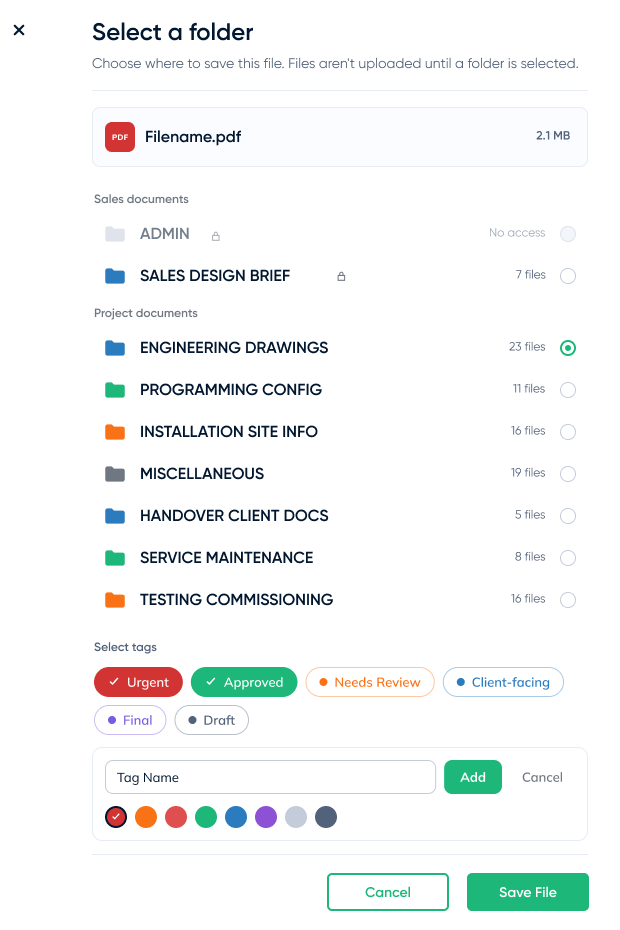
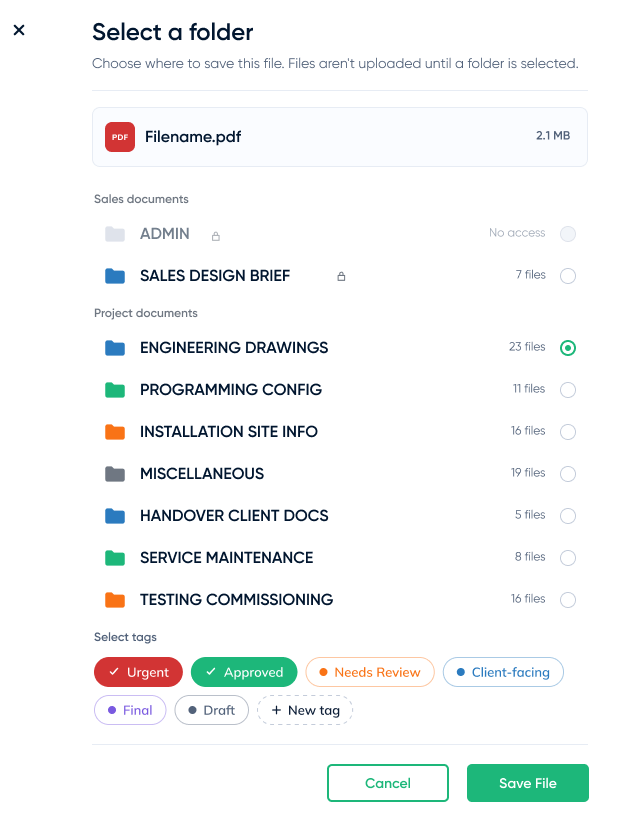
The picker's subtitle says it plainly: files aren't uploaded until a folder is selected. “Sort it later” is how files ended up scattered in the first place, so the product never creates a pile to sort.

Considered Upload first, file later Fast in the moment, and the root cause of the mess.
✓ Chosen Folder first, in one dialog Filing and tagging happen in the same step as the upload.
Trade-off accepted: one extra decision per upload. I kept it to a single dialog, with file counts as a hint about where things usually go.
  • 1The file you're filing, with type and size, so you know what you're saving.
  • 2Access, shown up front. Locked folders are visible but disabled (Decision 03).
  • 3The same groups as the tree. Sales and Project documents, in project order.
  • 4File counts show which folders a team actually uses.
  • 5Tags in the same step, so files arrive with a status (Decision 04).
  • 6Nothing uploads until Save File. Closing the dialog leaves no orphan files.
Select a folder dialog. Subtitle: Choose where to save this file. Files aren't uploaded until a folder is selected. Shows the file Filename.pdf, Sales documents and Project documents folders with file counts, a disabled Admin folder marked No access, tag chips, and Cancel and Save File buttons.
Decision 03 · Q2

Show locked folders. Don't hide them.

Sales briefs and admin files are sensitive, but hiding them makes the structure look different for every person, and a missing folder reads as missing data. A visible lock explains itself and keeps the map identical for everyone.

Considered Hide what you can't open Cleaner list, but “where is it?” becomes a support question.
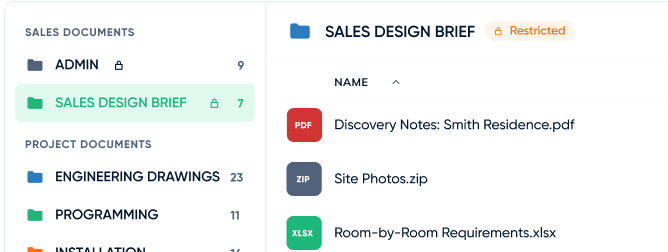
✓ Chosen Show, disable, explain A lock icon, a Restricted pill on the folder, and “No access” in the picker.
Trade-off accepted: people can see that a folder exists even when they can't open it. Names are visible, contents never are.
Three access states, one visual language
ENGINEERING DRAWINGSOpen to the project team
SALES DESIGN BRIEF Restricted
ADMIN No access
Close-up of the project Files tab: Admin and Sales Design Brief folders carry lock icons in the tree, and the open Sales Design Brief folder shows a Restricted pill next to its title.
In the product: locks in the tree, and a Restricted pill on the open folder.
Decision 04 · Q3

Tags for status, not a single status field.

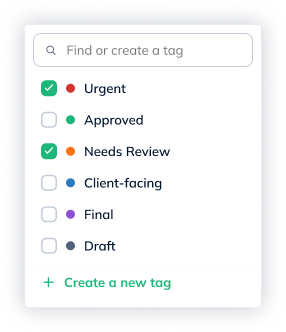
States overlap. A floorplan can be Needs Review and Client-facing at once, which a single dropdown can't express. Six starter tags cover urgency, review state and client visibility, and teams can add their own.

Considered One status dropdown Simple, but forces a single answer to a multi-part question.
✓ Chosen Multiple tags per file Composable status that reads in a table at a glance.
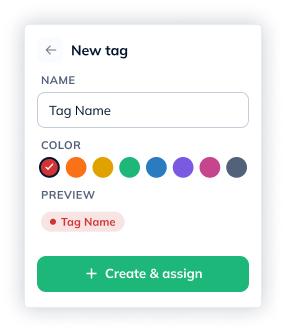
Trade-off accepted: tags can sprawl. Two guardrails: one field that searches before it creates, so “Urgent” doesn't become “urgent!!”, and a fixed palette of eight colors with a live preview.
Starter tags
Urgent Approved Needs Review Client-facing Final Draft
Custom tag palette
Tag popover with a Find or create a tag search field, a checklist of six tags with Urgent and Needs Review checked, and a Create a new tag link.
New tag popover with a name field, eight color swatches with red selected, a live preview chip, and a Create and assign button.
04 · Iteration

Protecting the primary action.

The first picker put the whole new-tag form inline. It worked, but it made the dialog taller, pushed Save File down, and put a secondary task in the middle of the main one. The fix was subtraction: a dashed + New tag chip that opens a compact popover.

Before · inline form
Earlier version of the Select a folder dialog with an inline tag creation form containing a Tag Name field, Add and Cancel buttons and eight color swatches.

Tag creation competes with filing for attention, and the dialog grows by a third.

After · + New tag chip
Final version of the Select a folder dialog, where tag creation is a dashed New tag chip at the end of the tag list.

Filing stays the focus. Creating a tag is one click away, in the place you'd look for it.

05 · The edge of the rule

Before there's a project, let sales be a little messy.

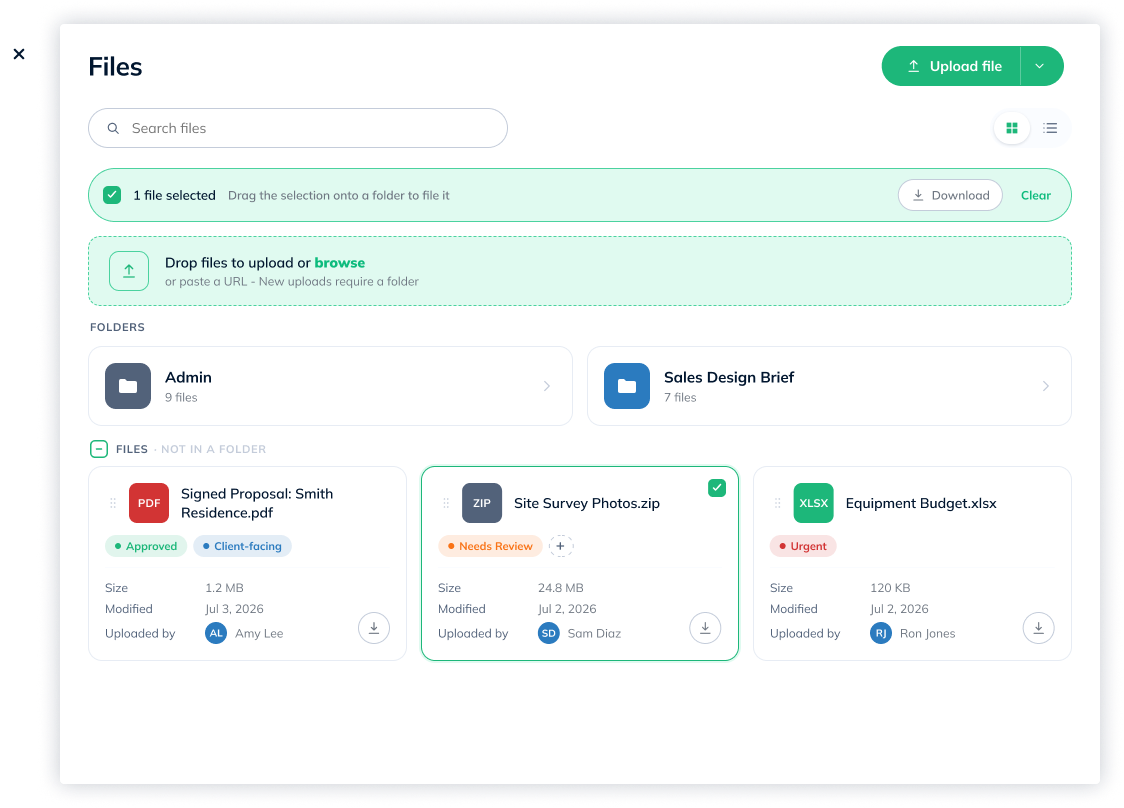
A filing rule is only good if it fits the moment. On the quote, deals move fast and documents often arrive before anyone knows where they belong. So the quote view is lighter, and it's where I tested how far the rule should bend.

Quote Files dialog in grid view. A selection bar reads 1 file selected, drag the selection onto a folder to file it. Below are a drop zone, Admin and Sales Design Brief folder cards, and three unfiled file cards with tags, size, modified date and uploader.
Grid view. Select one or many files, then drag the selection onto a folder to file it.
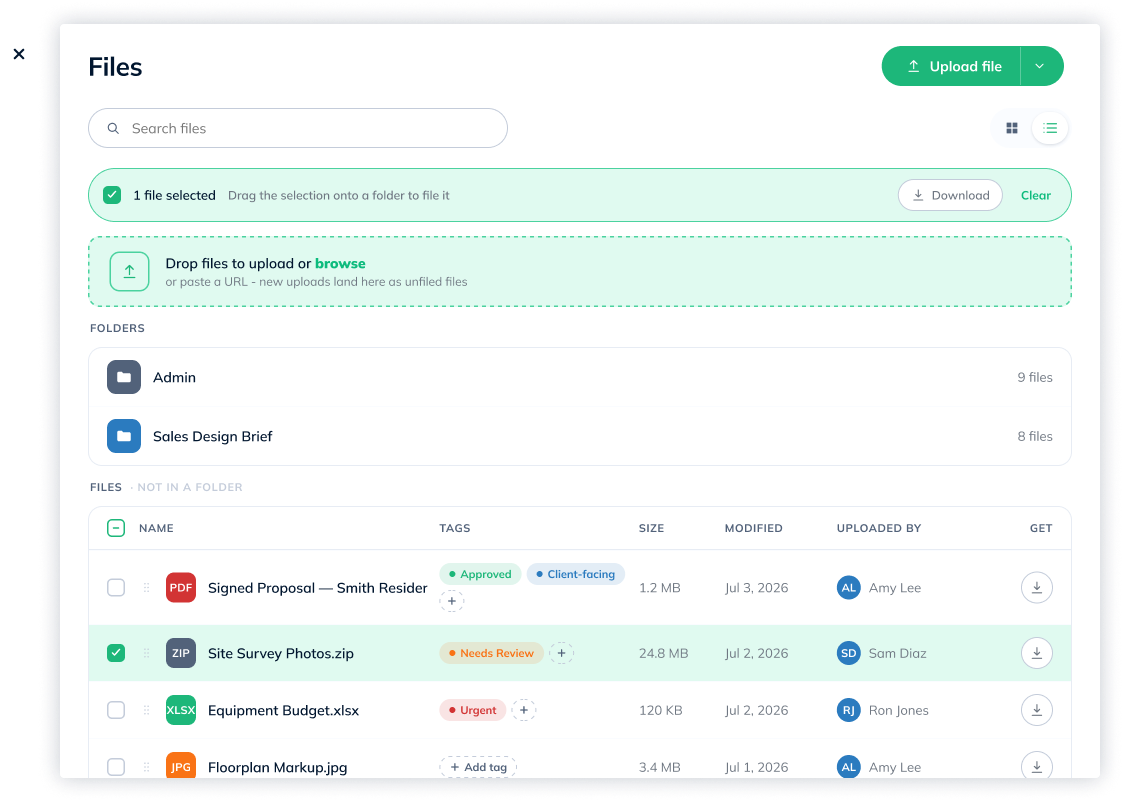
Quote Files dialog in list view, with folders as rows and unfiled files in a table with checkboxes, tags, size, modified, uploaded by and download columns.
List view. The same content and selection model, denser for busy quotes.
An open question, designed both ways

Should quote uploads be allowed to stay unfiled?

Variant A · strict New uploads require a folder

Same rule as the project. Cleanest data, but adds friction at the fastest-moving stage.

Variant B · forgiving New uploads land here as unfiled files

Matches how early sales work happens, with drag-to-file and a visible “not in a folder” area as the nudge.

I'd let the data decide: if unfiled quote files still exist when deals convert, the forgiving variant is creating debt, and the strict rule should win.

06 · Craft

The details people stop noticing are the ones that make it trustworthy.

A file manager earns trust in small moments: whether a lock explains itself, whether download is one click, whether a column of files can be scanned before it's read.

Type before name

Badges are colored by file type, so a folder of drawings, sheets and photos is scannable before anyone reads a filename.

Counts everywhere

Every folder shows its file count in the tree and the picker, so active folders stand out from empty ones.

Download is never hidden

It's the most common action, so it ends every row and every card instead of living in an overflow menu.

Search at two altitudes

Global search covers the whole project. Each folder has its own search and filter for when you already know where to look.

Upload where you are

Every folder ends in a drop zone, and the quote view accepts a pasted URL. Uploading never needs its own screen.

Never color alone

Every tag pairs a color with a dot and a label, so status still reads for color-blind users and in grayscale prints.

07 · Success and what's next

How I'd know it's working, and where it goes from here.

A filing system succeeds when people stop thinking about it. These are the signals I'd hold it to, each tied to one of the four questions, followed by the bets the structure makes possible.

SignalWhat it tells us
Uploads filed on the first try, without a later moveQ1: the structure matches how people think about the work.
Unfiled quote files remaining when a deal convertsQ4: whether the forgiving quote variant is creating debt.
Access requests versus “where is it?” support ticketsQ2: whether visible locks explain themselves.
Starter versus custom tag usage, and near-duplicate tagsQ3: whether the vocabulary fits, and whether the guardrails hold.
Next bet

From a Client-facing tag to a client packet

The tag already marks what's safe to share. The natural next step is sharing everything tagged Client-facing as one link, without exporting a thing.

Builds on Decision 04
Next bet

Site photos, filed from the field

Technicians already live in D-Tools Mobile. Letting them drop site photos straight into Installation closes the loop between the job site and the project record.

Connects to D-Tools Mobile →
Next bet

A closeout pack that assembles itself

With Closeout Documents and a Final tag in place, the handover packet a PM builds by hand at the end of every project can be generated instead.

Builds on Decisions 01 + 04
08 · Reflection

What a blank page taught me.

Write the acceptance criteria before the first screen.

With no legacy to lean on, the four questions became the brief, the review checklist and the success metrics. They turned taste debates into yes-or-no checks.

Constraints only feel fair when they're visible.

Folder-first filing, locked folders and a fixed palette are all restrictions. Each one works because the interface shows the rule and the reason at the moment it applies.

Naming is the information architecture.

Folder names went through rounds of their own, and you can see the drift between the picker and the tree. Next time I'd lock vocabulary with integrators before any layout work.

Files gave AV projects a single place for their documents, from the first quote to the last service call.

A net-new feature designed end to end: a structure built on hand-offs, a filing rule that prevents the mess, access you can see, and status you can read.